



6 Reasons Firms Migrate to Modern ERP Systems
Many manufacturers are pivoting to modern or cloud-based Enterprise Resource Planning (ERP) systems as legacy, on-site systems become increasingly out of date, especially with the explosion of artificial intelligence like Agentic AI in manufacturing.
By replacing your current systems and completing an ERP migration, you can centralize your entire business operations and gain real-time data visibility. Here are additional benefits you can unlock and why more businesses are migrating to ERP systems.
1. Replacing Disconnected Systems with One Platform
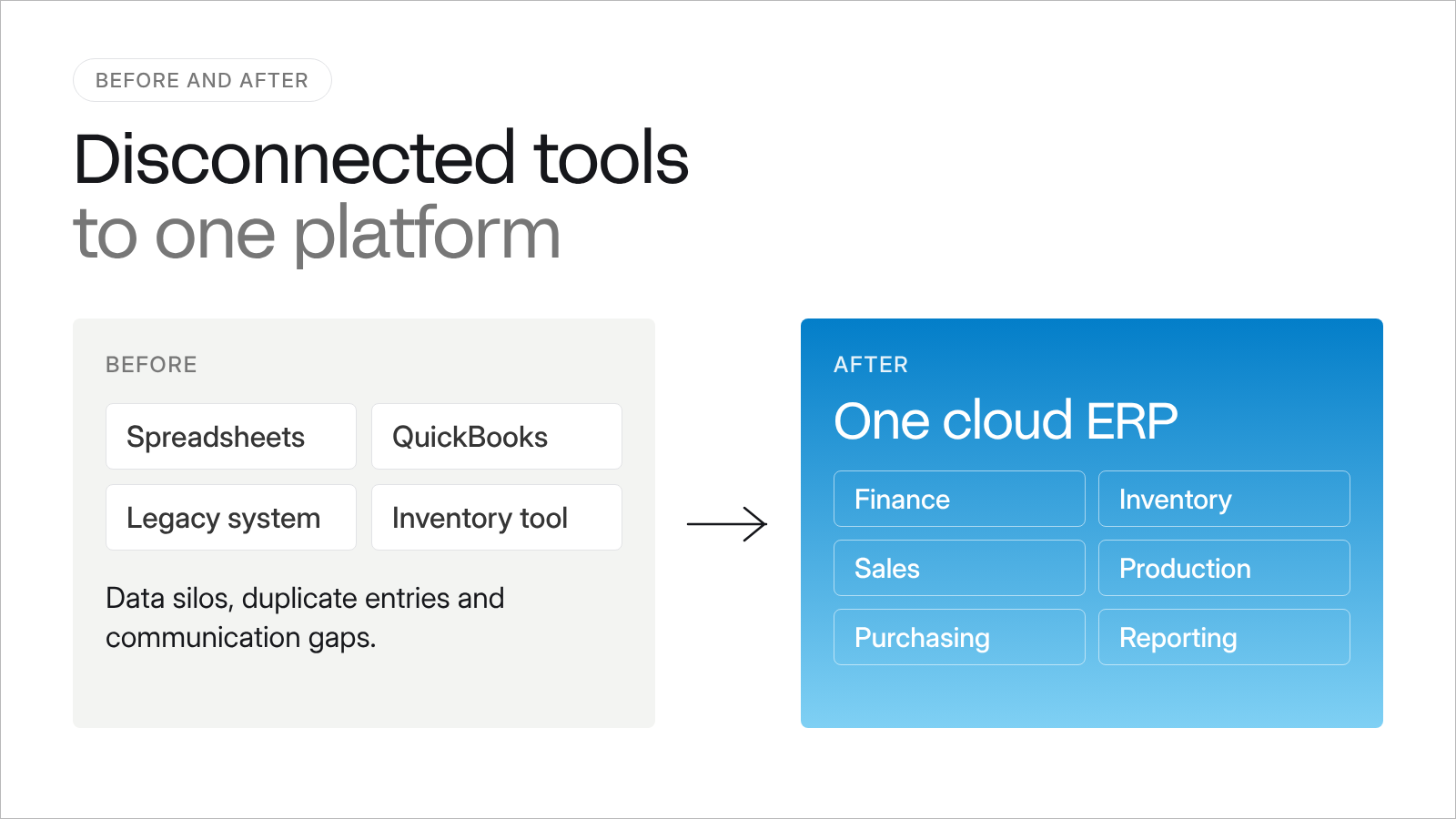
Older enterprises often rely on custom-built tools from decades ago that are disconnected from finance, inventory, and sales, while smaller businesses use spreadsheets that take time to maintain.
Regardless of the reason for using a disconnected system, these tools lead to:
- Data silos
- Duplicate entries
- Communication gaps
By migrating your ERP to the cloud, you can solve all of those problems by centralizing your business's important data across the organization in one place.
For you and your team, this means everyone works with the same data, so each operator or department can better understand how operations are progressing.
2. Outgrowing Legacy Infrastructure
As already touched upon in the previous section, the issue with legacy systems is that they begin to fail once the business starts increasing its:
- Transaction volumes
- Product lines
- Office locations
And the only way to get your system up to par is to fork out money for expensive upgrades.
Modern ERP solutions are mostly cloud-based, so updates, infrastructure, and server maintenance are all handled securely off-site.
3. Real-Time Data, Analytics, and AI
As you can see, legacy solutions (and spreadsheets) share a common theme, and that’s driving larger enterprises to ditch antiquated systems and migrate to modern ERP models.
By switching to a cloud-based solution, businesses can replace batch processing with real-time analytics and, in some cases, AI, like Sutton, which gives users access to Sutton Studio to create their own reports and workflows. Even without AI, most tools now include real-time dashboards to monitor operations and business performance, and they use demand forecasting based on historical data and external market conditions.
4. Automating Business Processes
Modern systems can automate processes across your business, so your team spends less time updating records or finding workarounds and more time focusing on what drives value for the business and your customers.
Using a tool like Sutton means you can automate the more repetitive tasks that you and your team need to manage on a day-to-day basis, including things such as:
- Invoicing and reporting
- Supply chain operations
- Inventory tracking and updates
- Procurement procedures
5. Lowering Maintenance Costs
With maintenance costs of your solution offloaded to the ERP vendor, you can save money that would have otherwise had to be spent on things like:
- Expensive servers
- Dedicated IT specialists
- Heavy custom-code upkeep
6. Improving User Experience
Finally, and most importantly, as the workforce gets younger, more operators expect interfaces that are easy to use and understand, since most of our personal lives are spent using apps and we’re becoming more tech-savvy.
Another thing users expect that a custom-built legacy system can’t offer is plug-and-play capabilities. Businesses often use more than one tool, and for a solution to truly offer centralized management, it needs to play well with others. Most newer tools today include built-in integrations, provide API access, or offer MCP for manufacturing.
So, that’s everything you need to know about why more businesses are choosing an ERP migration instead of roughing it out with their current systems.
What Migration Looks Like From Your Current System
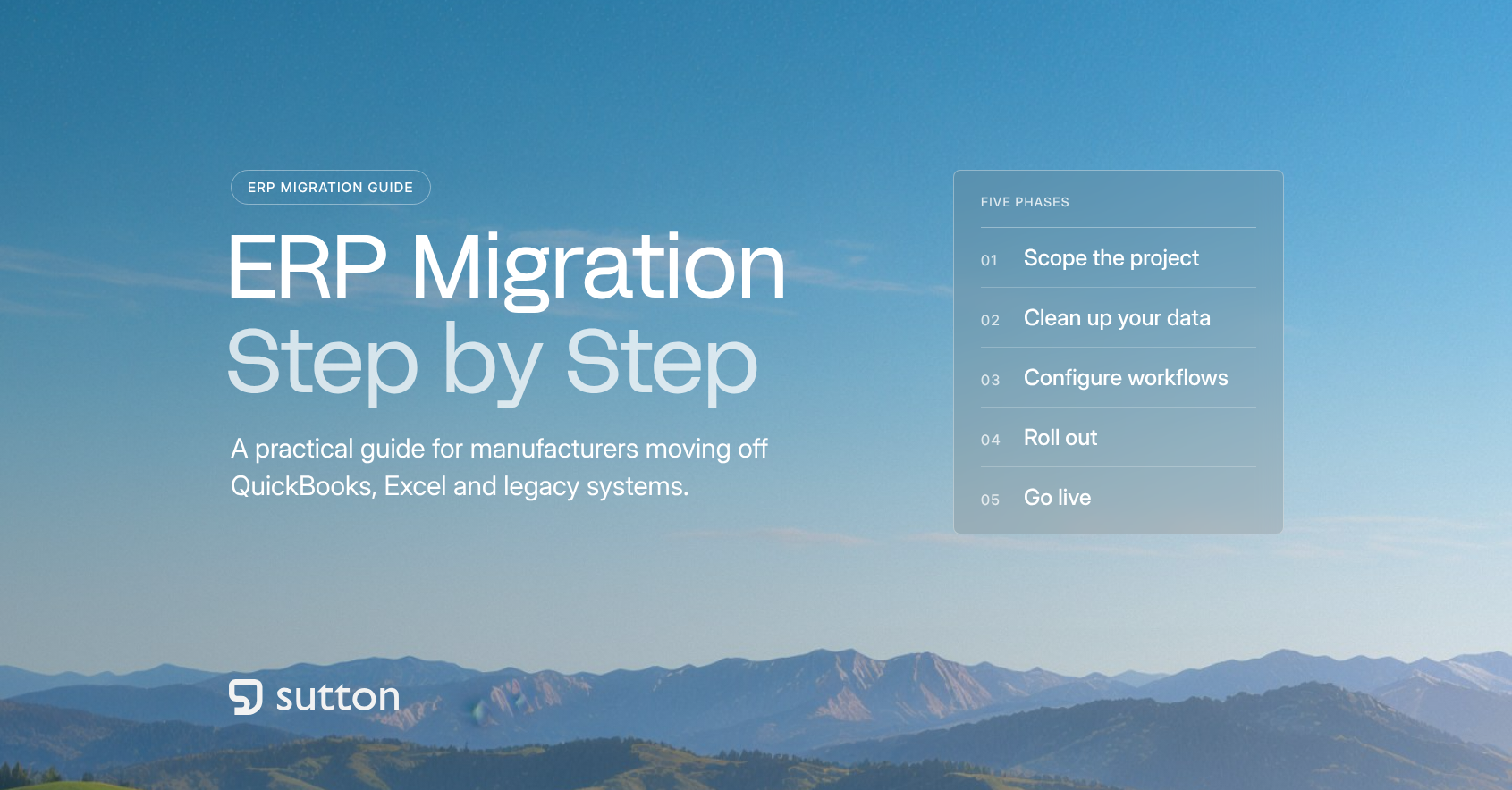
If you’re looking to ditch your current system and perform your own ERP system migration, here’s what it’s likely going to look like in general:
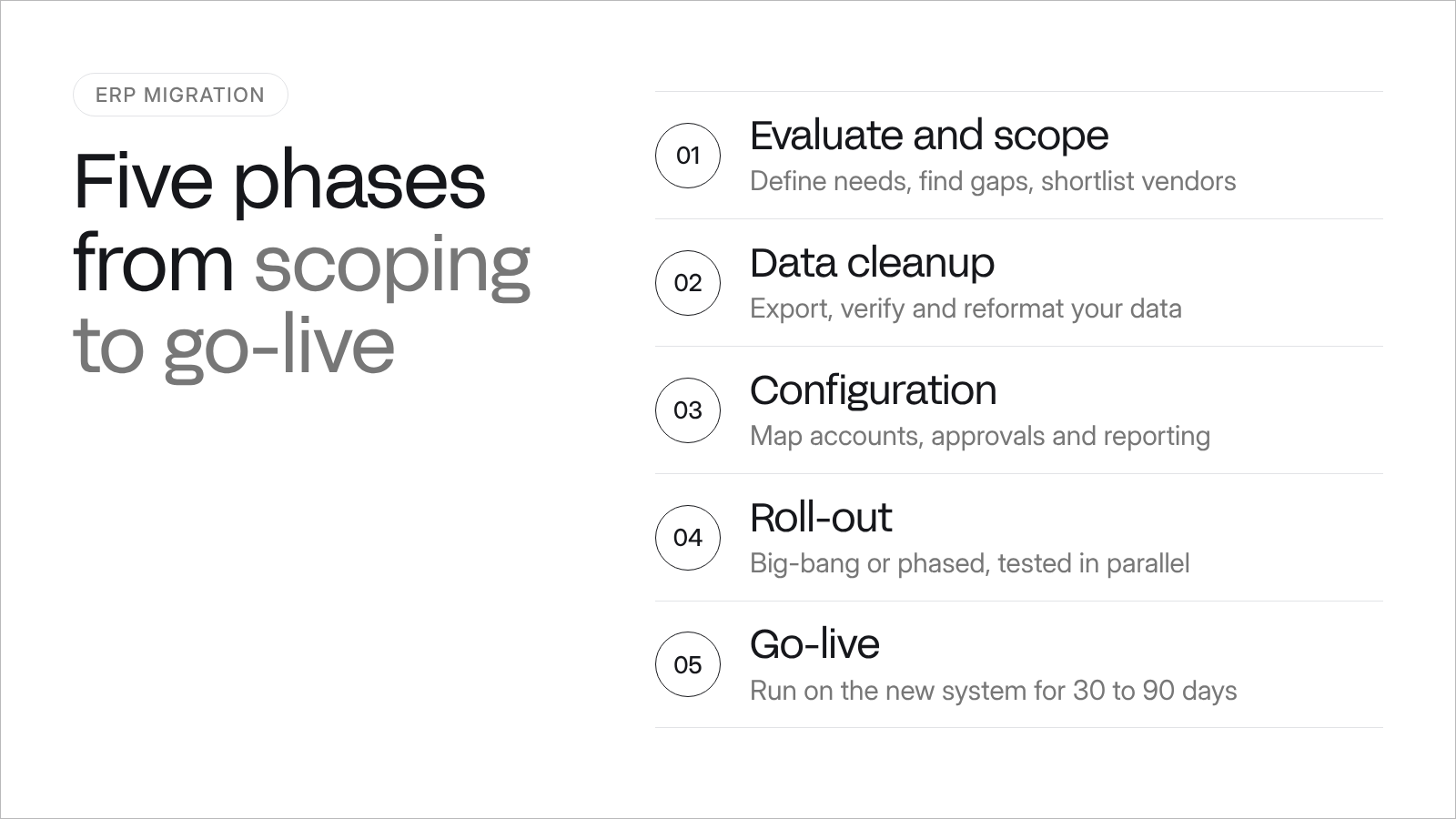
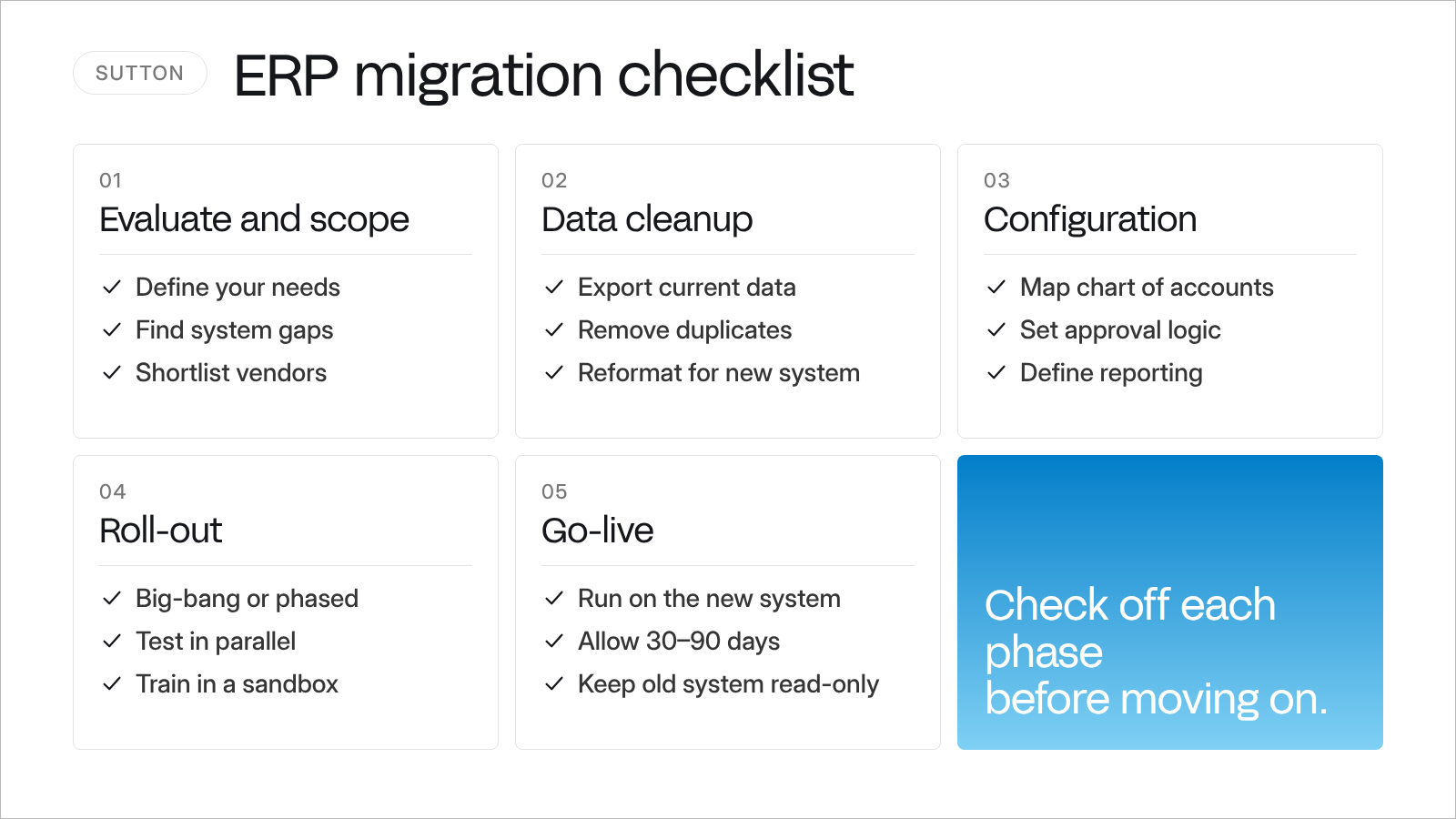
- Evaluating and scoping the project — It’s not considered a good idea to rush into an ERP data migration project without first understanding what your team needs, identifying the gaps in the current system, and creating a shortlist of vendors.
- Data cleanup — Your migration to the ERP software will only be successful if the data it reads makes sense. Although some migrations can happen via API integrations, you’ll likely still need to export your current data, verify its accuracy, and reformat it for the new system to make uploading easier later.
- Configuration and workflow design — This is where you map out your chart of accounts, entity structures, approval logic, and reporting hierarchies. Depending on the amount of data you need to transfer over, or how complicated your current system is, you may need to rely on external partners for assistance (though some modern solutions can generate some starter configurations to get you started).
- Roll-out (hard and fast or slow and steady) — You can go with a big-bang approach and move the entire company over in one go, or go incremental by department so your business doesn’t face disruptions. Either way, the rule of thumb is to test systems in parallel so you can identify issues before go-live.
- Go-live — You’re pulling the trigger and running everything on the new system. There will likely be hiccups at first, and it’s standard practice to allow 30 to 90 days for stabilization.
Another factor is implementation time: a smaller company might be up and running in a month or so, while a mid-market manufacturer might take three to six months.
To better illustrate what a transition to a new ERP system might look like, here are some typical scenarios manufacturers often face during a migration.
- Scenario A: Multi-level BOM migration — It’s not common for manufacturers to make sub-assemblies that can be sold or later used to build another finished product, and to track this, they need multi-level BOM management. During the migration, a manufacturer would need to export their BOM and link each row to the parent/finished product by their SKUs. Once the parent and child relationships of a build have been defined, your team can review them in the software.
- Scenario B: In-progress work — It’s not common practice to move open projects over during migration, because if something goes wrong, it can stop production and delay orders. The best approach is to wrap up outstanding projects and jobs in the old system, then perform the migration. Then, when you’re ready to start managing manufacturing orders in the new system, you can define item routing, so the team can track progress, output, and completion for every step.
- Scenario C: Inventory counts — Export your inventory report, and perform a physical stock count to ensure that the report is accurate. If it is accurate, you can bulk-import inventory and quantities into the new system, and if there’s an issue with the data, you can make an inventory adjustment in the new tool.
Here are some scenarios of what data migration in ERP implementation might look like for specific systems.
Migrating From QuickBooks
Since QuickBooks is largely used as accounting software (though there are differences between Online, Desktop, and the different plans, and people do use QuickBooks for inventory management), you’re going to be mostly looking at getting your bookkeeping migrated over to a unified system, likely following these steps:
- Step 1 — Begin by mapping your quote-to-cash and purchase-to-pay processes
- Step 2 — Clean up master data to remove errors and inconsistencies, such as inactive customers, duplicate vendors, and obsolete SKUs
- Step 3 — Redesign the chart of accounts and match inventory, bills of materials, and warehouse workflows one-to-one
- Step 4 — Import your opening balances, open transactions, and limited history
- Step 5 — Start integrating your tech stack with the new system, including your e-commerce, banking, payroll, and shipping platforms
- Step 6 — Run a staging trial migration and reconcile balances
- Step 7 — Start giving access to your team and onboard them onto the new solution
- Step 8 — Switch on the first day of a new month or quarter, and have your accountant confirm the closing balances. Keep QuickBooks read-only for historical audits.
Migrating From Excel
Even though spreadsheets get messy and difficult to reconcile as your operations begin to grow, the one good thing about moving from spreadsheets like Excel is that almost all systems are designed to read sheets and allow users to bulk upload data to the new system, and your migration will look roughly like this:
- Step 1 — Find every spreadsheet (the ones you use and the ones floating around your OneDrive), then start replacing, integrating, or archiving them. You might have spreadsheets for pricing, inventory, production schedule, or job tracking. You could even keep them for analysis during and after migration
- Step 2 — Identify which data is important for your business from your chart of accounts, open balances, and customer and supplier records, and document current workflows
- Step 3 — Once you have your spreadsheets organized and the data cleaned, standardize naming, dates, and unique identifiers, then export the CSV file
- Step 4 — Start your migration process by uploading the CSV file directly to your new tool. But during this stage, we’d recommend still holding on to your spreadsheets and maintaining them for a few weeks as you and your team get used to the new system
Migrating From Standalone Inventory Software
If you’re looking to move away from your inventory management system and would prefer to not integrate it with an ERP and instead centralize your stock, purchasing, and finances into one place, your migration will look a little something like this:
- Step 1 — Review items, SKUs, records, and vendors, and begin purging incorrect data and archiving history as read-only
- Step 2 — Think about designing how your workflows will look in the new system based on its built-in tools like stocktakes, inventory valuation, and safety stock features. If you’re using a separate WMS, then think about whether you want that data integrated into the ERP system
- Step 3 — Start the ERP migration process by moving over your open purchase orders, pending shipments, and open receivable and payable balances
- Step 4 — Check each data load, check that your systems share data correctly, then have your team run real daily tasks before go-live
- Step 5 — Choose how you want to manage the transition. Do you want to go big-bang, phased, or parallel? Once you’ve chosen, commit to it and analyze the migration afterward
Pro tip: Not sure whether an ERP is for you and whether you should stick it out with your inventory management software? Learn more about the different inventory tools in our article — ERP vs. MRP vs. MES: The Differences Explained.
Migrating From a Legacy or Manufacturing ERP
Migration from a manufacturing ERP system to a new one means transferring the business rules governing stock movement, valuation, bin management, and location control along with the data:
- Step 1 — Assess the current system with operations and warehouse leads, documenting custom fields, reports, and automated processes.
- Step 2 — Find custom triggers, procedures, and scripts. Discard obsolete logic, re-implement critical rules, and verify add-ons against vendor documentation.
- Step 3 — Cleanse data, standardize units of measure, and verify bin locations.
- Step 4 — Build a field-level mapping document reviewed by IT and business stakeholders.
- Step 5 — Run trial migrations with reconciliation and backups.
- Step 6 — Set go/no-go criteria, freeze the legacy system, and keep a rehearsed rollback plan.
The ERP Migration Checklist
If the above scenarios didn't resonate with you, you can use the Sutton ERP Migration Checklist down below to help you with setting guidelines you can follow when migrating to your new solution.
Here are the five phases of migrating that we covered earlier in this article:
Where ERP Migrations Go Wrong
Most ERP migration failures trace back to decisions made before the technical work begins.
Companies that scope the project as a software installation are often surprised to find the hardest problems are organizational.
1. Treating the Migration as an IT Project
The team handling the migration is usually IT, but operations, finance, sales, and customer service make the decisions that determine success.
When IT runs the project alone, the business process work gets deferred or skipped. Users receive a system that does what the old one did, with no real improvement to show for the spend.
2. Underestimating the Data
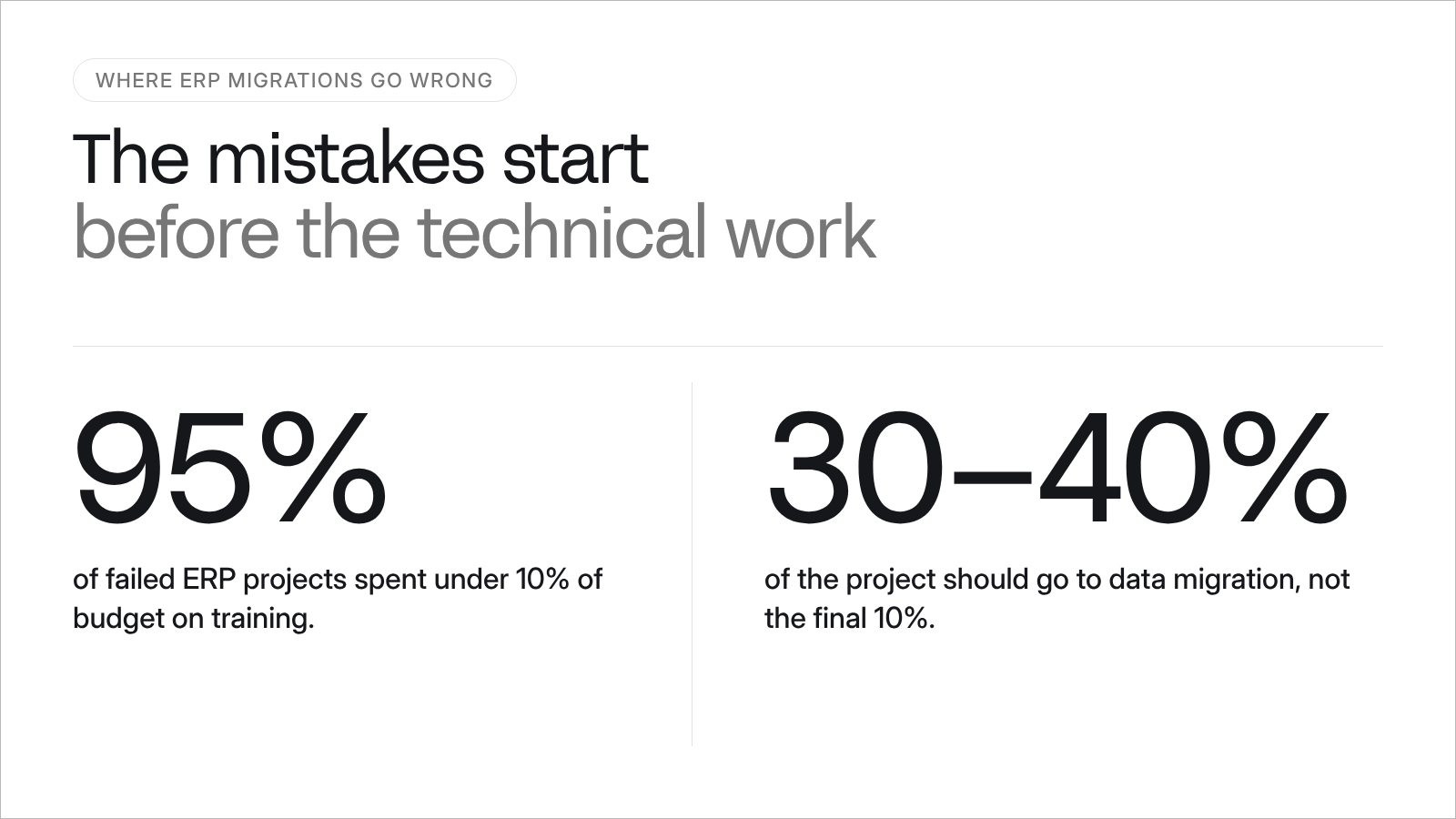
Data migration is often treated as the final 10% of the work — but it should be the first 30 to 40%.
Duplicates, inactive records, and gaps move across untouched, and the new system goes live with bad data. The cost then shows up in every report.
3. Customizing Too Heavily
Companies often try to make the new ERP behave exactly like the old one.
Heavy customization follows, along with rising costs, complexity, and integration problems. A well-built standard system performs better when the business adapts its processes to it.
4. Underfunding Training
Research shows that 95% of companies that fail at ERP implementation spent less than 10% of their total budget on training and change management.
Users who are unprepared build Excel workarounds that undermine the migration within weeks of launch.
5. Rushing the Timeline
Deadlines are often set for reasons unrelated to the work, such as a financial year-end.
Data cleansing, testing, and training are usually the first items cut. Hershey tried to fit a 48-month project into 30 months and went live in the run-up to Halloween. It could not process around $100 million of orders it had the stock to fill.
And there you have it! Everything you need to know to ensure that your ERP cloud migration goes swimmingly. If you’re looking for a tool to replace your current systems and don’t know where to start, we’d recommend giving Sutton a try.
How Sutton Approaches Migration
Sutton supports manufacturers moving to a new ERP mainly through its data import tools and integrations.
Both reduce manual entry and keep data consistent while the business moves off its legacy systems.
Importing Foundational Data
The Import Module handles the foundational data.
Teams upload files containing items, BOMs, routing steps, stock levels, and costs. The Import Module maps the columns in those files to Sutton fields and validates the data before it creates any records. It also validates dependencies, so data loads in the correct order.
Connecting Existing Tools
Integrations and the API cover the transition period.
Teams can connect Sutton to existing tools or internal systems to sync sales, inventory, accounting, and fulfillment data. The API reads and writes records such as items, orders, inventory, and customers. This lets teams automate migration workflows.
Onboarding Your Team
Teams can onboard themselves in 30 minutes or less with Sutton.
They invite team members, and Sutton sends each person an email invitation. Every new user is assigned a role that determines what that user can access in the system. Roles can be changed later.
A few setup steps that can make onboarding smoother include configuring the workspace early in Settings by setting organization details, the default currency, the default unit of measure, stock alerts, and locations.
Create foundational records such as items, warehouse locations, and initial inventory before running any orders. Train the team first in a sandbox environment, where employees practice their daily workflows using fake data. Plan for about two to four hours per person.
If you would like to learn more about Sutton and how to run your ERP migration smoothly, feel free to book a call with one of our migration experts, who’d be happy to explain what your migration process might look like.